Last updated: 27 October 2026
By Swapnil Patil, remote WordPress developer
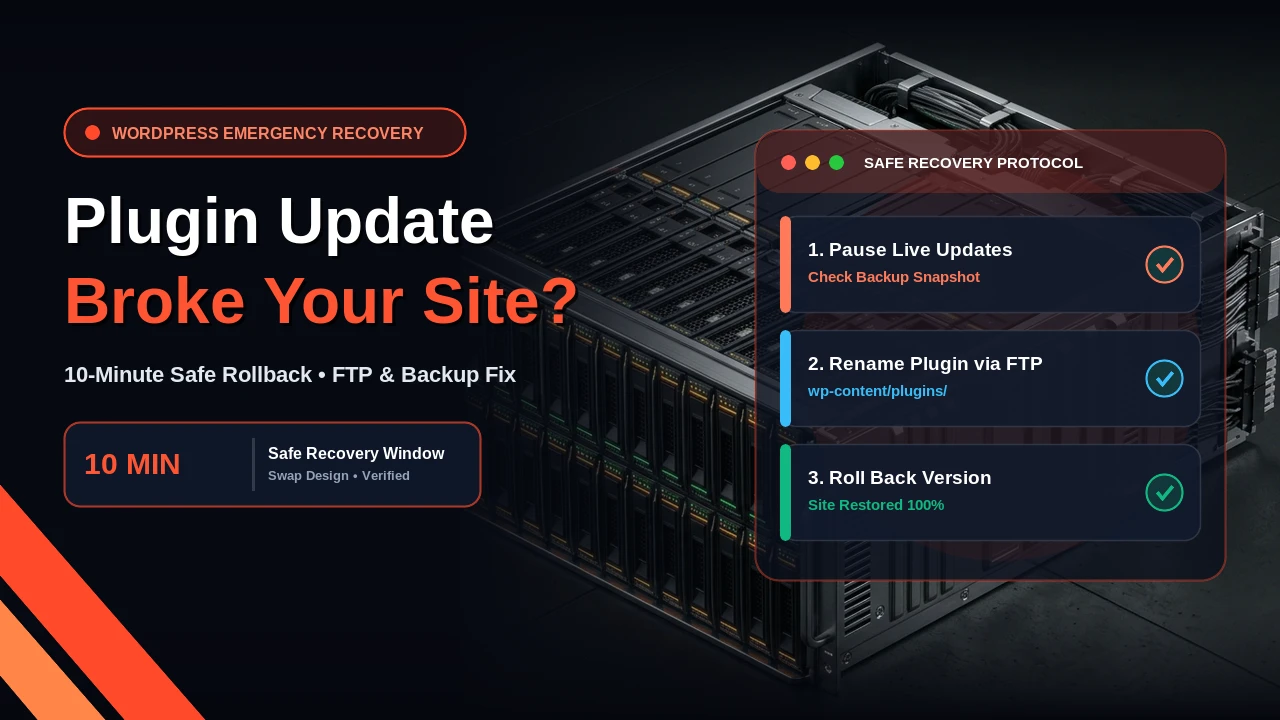
If you are searching because a plugin update broke my WordPress site, stop clicking buttons inside your dashboard right now. In the first ten minutes, check your live site in a private browser window, confirm you have a recent backup in your hosting control panel, and either deactivate the faulty plugin or roll back its version number. Do not update five more plugins or switch your theme hoping the error clears itself. One calm step at a time brings your pages back without losing your latest orders or contact form entries.
What Will You Usually See When a WordPress Update Breaks Your Site?
When a WordPress update broke my site, the damage usually shows up in one of three ways. Knowing which symptom you are looking at tells you whether the problem is a server-level code crash or a visual styling clash.
- A plain blank screen: Often called the WordPress white screen after update, your browser loads an empty white page with no text or menus. This happens when PHP runs into a fatal code error and stops loading the page halfway through.
- A critical error message: Modern WordPress versions display a grey box reading, “There has been a critical error on this website.” WordPress also tries to send a recovery link to the site administrator email address on file.
- A broken page layout: Your homepage still loads, but the top navigation menu is stretched across the screen, contact forms fail to submit, or product photos disappear. This usually means a page builder, slider, or caching plugin updated its stylesheet and clashed with your active theme.
What Should You Check Before Touching Anything?
When a business owner messages me saying a plugin update broke my WordPress site, the worst damage rarely comes from the update itself. It comes from panicked fixes made in the twenty minutes after the crash. Before you delete any folders or click restore, check three things:
- Write down which plugin you just updated: If you updated three or four plugins together, list their names. Forms, eCommerce checkouts, page builders, and security plugins cause the most clashes.
- Check your admin email inbox and spam folder: Look for an automated email from your website with the subject line “Your Site is Experiencing a Technical Issue.” That email names the exact plugin file causing the crash and includes a special recovery mode login link.
- Verify your latest hosting backup: Log in to your web hosting dashboard (such as cPanel, SiteGround, Cloudways, or Kinsta) and check the timestamp on your most recent automated backup. Knowing you have a clean snapshot from last night removes the panic before you start working on files.
How Do You Roll Back a Plugin Update Safely?
You can roll back plugin update changes in two ways, depending on whether you can still open your WordPress admin dashboard (`yourdomain.com/wp-admin`).
Method 1: If You Can Still Log In to Your WordPress Dashboard
If your admin screen still works and the issue is only a broken layout or missing form on the front end, you do not need to touch server files:
- Go to Plugins > Add New inside your WordPress dashboard and search for WP Rollback.
- Install and activate the plugin, then return to your main Installed Plugins list.
- Find the plugin you updated right before the site broke and click the new Rollback link next to Deactivate.
- Select the previous version number you were running, confirm the rollback, and clear your caching plugin.
Method 2: What to Do If You Cannot Log In to WordPress
If you see a WordPress white screen after update and `/wp-admin` is completely locked out, WordPress is loading the broken plugin code on every page request. You can turn that plugin off from outside WordPress using your hosting File Manager or an FTP client like FileZilla:
- Log in to your web hosting account and open File Manager (or connect via SFTP).
- Open your main website folder (usually named `public_html` or `www`), then open the `wp-content` folder, and click into the `plugins` folder.
- Find the folder for the plugin you just updated. For example, if an Elementor or WooCommerce add-on caused the crash, locate its folder name.
- Right-click the folder and rename it by adding `-old` to the end (for example, change `plugin-name` to `plugin-name-old`).
- Try logging in to `yourdomain.com/wp-admin` again. Because WordPress can no longer find the folder under its original name, it deactivates that single plugin automatically and lets you back into your dashboard.
- Once you are back inside, delete the broken plugin version and upload the previous working release, or restore that single plugin folder from yesterday’s backup.
If you cannot tell which plugin caused the crash, rename the entire `plugins` folder to `plugins-hold`, log in to your dashboard, rename the folder back to `plugins`, and reactivate your plugins one by one from the dashboard until the culprit shows itself.
A Real Example From My Client Work
[placeholder for one real case of mine: which plugin, what broke, what I did, how long it took]
When Rolling Back Will Not Fix Your Site (Honest Limit)
Rolling back a plugin only works when an incompatible code update caused the failure. If your site was hacked rather than broken by an update, rolling back a plugin will not fix it. Signs of a hack include strange files appearing in your root folder, spam links injected into your pages, or your admin password no longer working. You can read our guide on what happens if my site gets hacked to see how malware cleanup differs from an update rollback.
How Do You Stop Plugin Updates From Breaking Your Site Again?
Once your website is back online, put three simple habits in place so you never face an unexpected outage during business hours again:
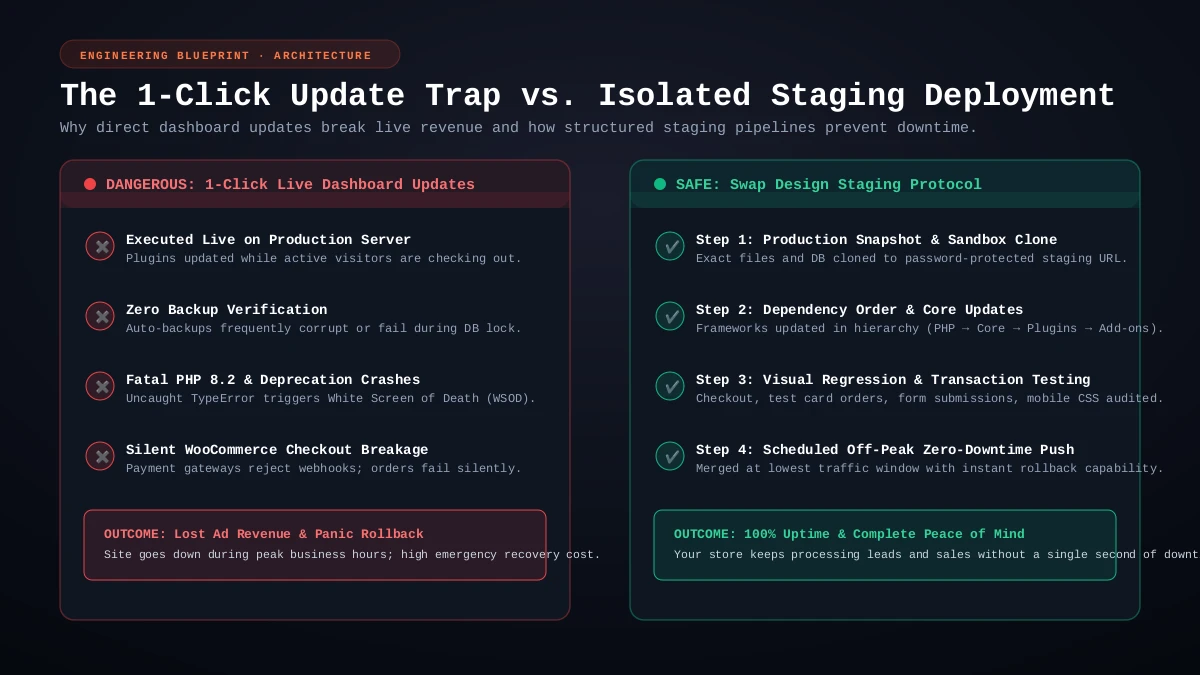
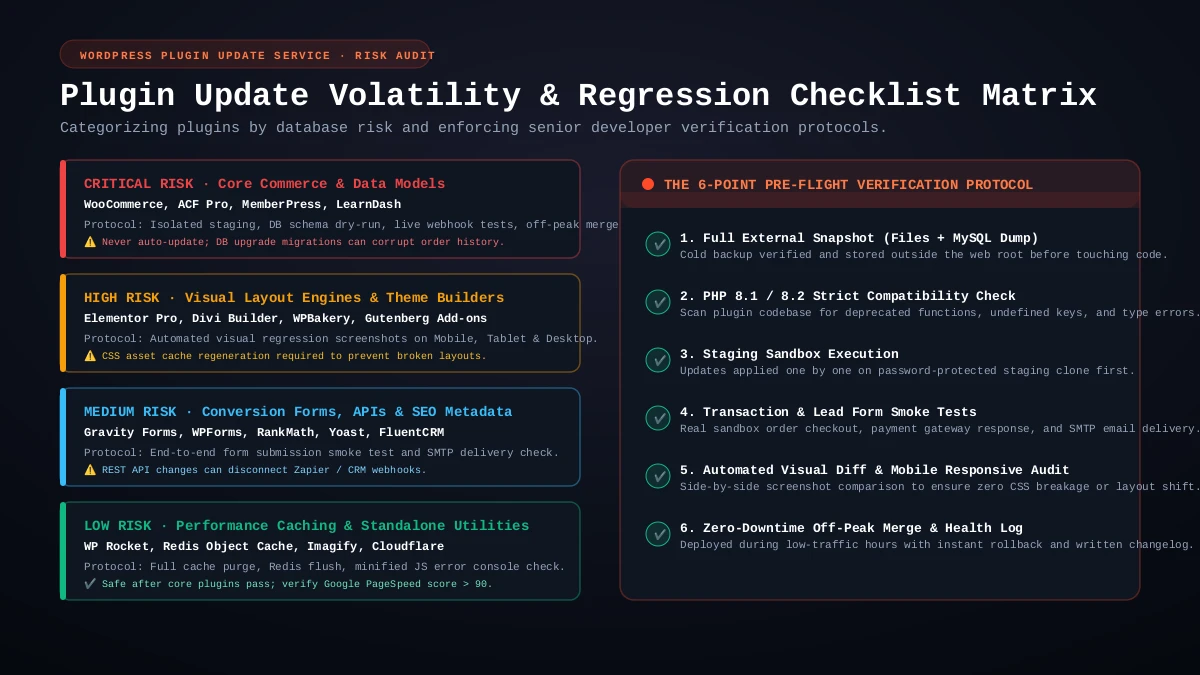
- Turn off blind auto-updates for heavy plugins: Automatic updates sound convenient, but letting WooCommerce, form builders, or page builders update themselves at 2 p.m. on a Tuesday means nobody is watching if the checkout breaks.
- Take a manual backup before clicking Update: Before running updates, take a fresh file and database snapshot so you can return to that exact minute in two clicks.
- Update one plugin at a time on a staging copy: Clone your site to a private staging subdomain first, run the updates there, click through your main pages and contact form, and only push changes live once everything works. If you would rather hand that routine over, our WordPress care plan from $120 a month covers tested updates, offsite backups with restore checks, uptime monitoring, and security checks.
When Should You Stop and Call a Developer?
Stop making manual changes and call a developer if renaming the plugin folder does not clear the critical error, if the update stalled halfway through a WooCommerce database migration, or if you do not have a recent backup and are worried about losing customer data. Guessing inside `wp-config.php` or deleting database tables can turn a fifteen-minute fix into a full rebuild. If your site is down right now and you want a safe pair of hands, message me on WhatsApp with your website URL and what you clicked before the screen went blank.