Last updated: 28 October 2026
By Swapnil Patil, remote WordPress developer
Most small business owners assume hackers only target large banks or major retailers. In reality, automated bots scan millions of domains every day looking for unpatched plugins, default login URLs, and weak passwords. Following a straightforward WordPress security checklist for small business websites blocks over 98% of automated attacks before they ever reach your database.
Direct Answer: The 7 Essential WordPress Security Habits
To secure a small business WordPress website: (1) update plugins and themes weekly after staging verification, (2) delete inactive plugins and unused themes completely, (3) enforce Two-Factor Authentication (2FA) and limit login attempts, (4) disable xmlrpc.php and PHP file execution inside /wp-content/uploads/, (5) set strict file permissions and HTTP security headers, (6) use a Web Application Firewall (WAF), and (7) store encrypted daily backups on an independent offsite cloud server.
| Vulnerability Vector | Threat Level | Automated Exploit Mechanism | Verified Hardening Measure |
|---|---|---|---|
| Unpatched 3rd-Party Plugins | Critical (>90% breaches) | Automated bot scanners scanning CVE databases | Weekly staging updates and virtual patching via Web Application Firewall |
| Default Admin & Weak Passwords | Critical | Credential-stuffing and dictionary attacks against wp-login | Enforce 16+ char passwords, Two-Factor Authentication (2FA), limit login attempts |
| XML-RPC Brute Force | High | Multicall pingback attacks guessing hundreds of passwords per request | Disable xmlrpc.php completely via server config or .htaccess rewrite rule |
| Executable Uploads Backdoors | High | Uploading malicious .php files disguised as image attachments | Forbid PHP execution inside /wp-content/uploads/ via server rule |
| Same-Server Backup Loss | Medium | Server hardware wipe or ransomware encrypting local backups | Automated encrypted daily snapshots stored on offsite AWS S3 / Google Cloud |
1. Patch Vulnerable Plugins Weekly (On Staging First)
More than 90% of WordPress compromises do not come from WordPress core itself; they come from outdated third-party plugins. Whenever a security researcher discloses a vulnerability in a popular form, slider, or SEO plugin, automated bots begin scanning the internet for unpatched versions within hours.
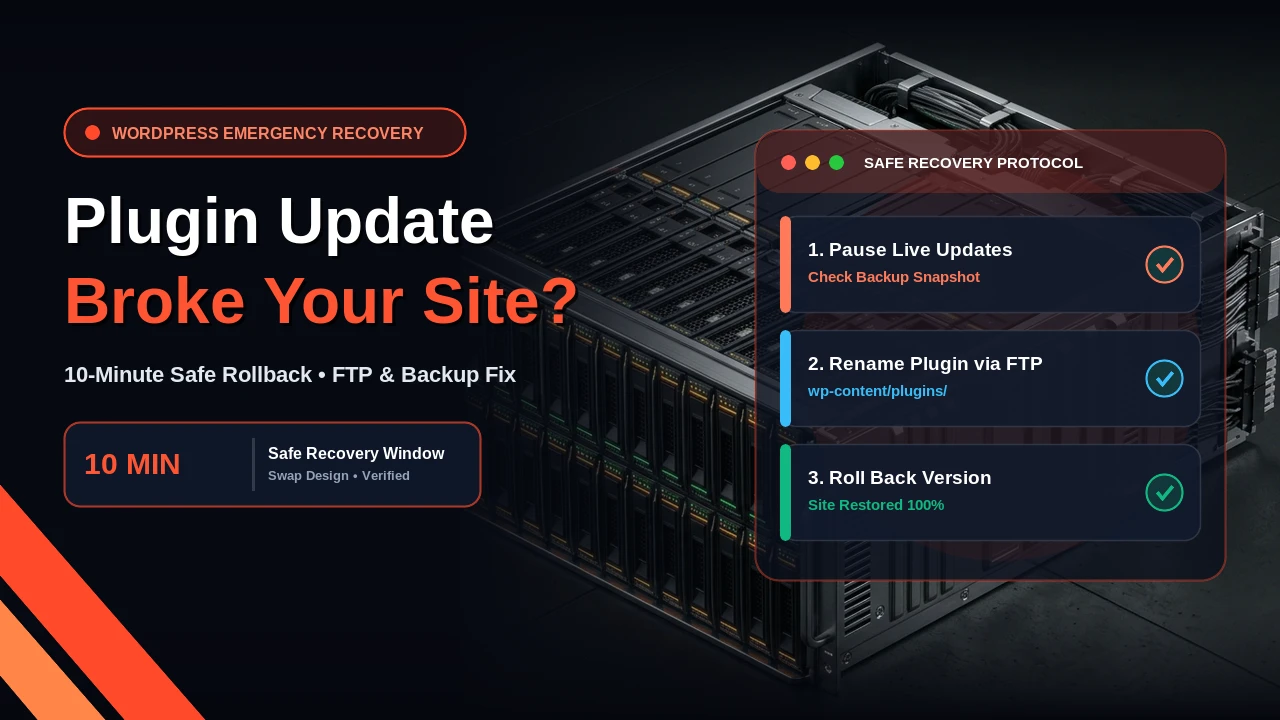
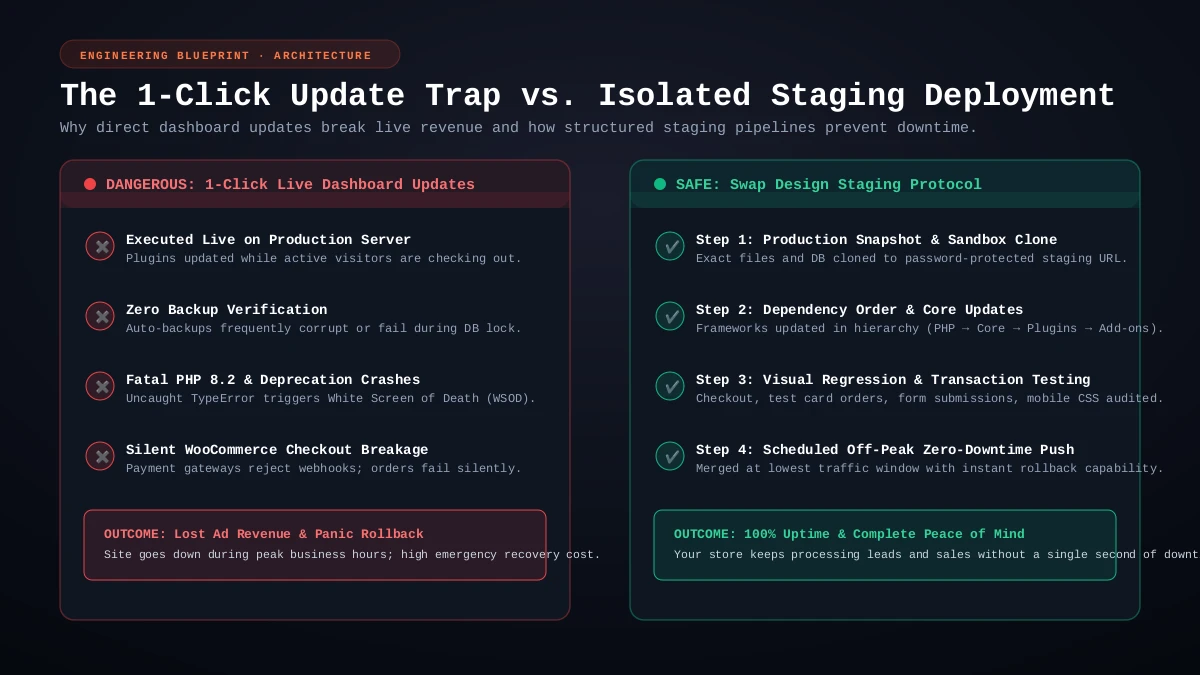
Instead of ignoring updates for six months, or clicking "Update All" blindly on your live site, test and apply updates every week using a safe WordPress plugin update workflow.
2. Delete Inactive Plugins and Unused Themes Completely
Deactivating a plugin does not remove its PHP files from your server. If a deactivated plugin or an old theme sitting inside /wp-content/plugins/ contains a direct-access vulnerability, an attacker can still execute that file if they know its path. Keep only your active theme (plus one clean default fallback theme if needed for troubleshooting) and delete every plugin you are not actively using.
3. Lock Down Login Access and Disable XML-RPC
Every day, bots hammer /wp-login.php and /xmlrpc.php trying thousands of leaked username and password combinations:
- Never use "admin" as a username: Create a unique administrator username and ensure every user account uses a 16+ character password with Two-Factor Authentication (2FA).
- Disable XML-RPC: Unless you use the legacy mobile app or specific remote publishing tools, block access to
xmlrpc.phpat the server or.htaccesslevel so bots cannot use it to amplify password-guessing attacks. - Rate-Limit Failed Logins: Lock out IP addresses that fail login authentication more than 5 times within 15 minutes.
4. Block PHP Execution in Your Uploads Folder and Set Security Headers
Your /wp-content/uploads/ directory is meant strictly for images, PDFs, and media files, never executable PHP scripts. Adding a simple rule in your server configuration or .htaccess file that forbids PHP execution inside the uploads folder prevents attackers from running backdoor scripts even if a form upload vulnerability occurs. Pair this with HTTP security headers (X-Content-Type-Options: nosniff, X-Frame-Options: SAMEORIGIN, and strict HTTPS).
5. Keep Daily Encrypted Offsite Backups (Not Just Hosting Backups)
If your hosting server suffers a breach or hardware failure, backups stored inside the same cPanel account can be wiped out alongside your live site. Always send automated daily backups of your files and database to an independent cloud bucket (such as AWS S3 or Backblaze) so your website can be restored cleanly in under 15 minutes.
Want Proactive Security & Weekly Care Handled for You?
If you would rather focus on running your business while a senior developer keeps your website patched, backed up, and monitored 24/7, explore our WordPress maintenance packages starting at $120/month (billed in USD via Wire Transfer or PayPal). Contact me here and I will run a free security and plugin health check on your site.