Last updated: 22 November 2026
By Swapnil Patil, remote WordPress & PHP developer
You upload a valid JSON file to /.well-known/mcp/server-card.json, open the URL in your browser, and get hit with either a red Apache 403 Forbidden screen or your WordPress theme's 404 Not Found page. Every week I debug this exact snag for Hostinger, cPanel, and LiteSpeed site owners trying to complete a clean sep-1649 mcp server card setup. The file is sitting on disk, yet AI discovery bots cannot read it. Before editing any server rules, check if your MCP server card returns HTTP 200 JSON in five seconds on our live diagnostic tool.
Direct Answer: How to Fix /.well-known/mcp/server-card.json 403 & 404 Errors
WordPress returns 403 Forbidden or 404 Not Found on /.well-known/mcp/server-card.json because Apache/LiteSpeed security rules block hidden dot-directories and WordPress rewrites unmatched URIs to index.php. Fix both by placing RewriteRule ^\.well-known/mcp/server-card\.json$ - [L,NC] above # BEGIN WordPress in .htaccess with 755/644 permissions.
Why WordPress & LiteSpeed Break /.well-known/mcp/server-card.json
Under IETF RFC 8615 for well-known URIs, root-level metadata belongs inside /.well-known/. The official Model Context Protocol repository extends that path with SEP-1649 so AI agents can inspect a domain's tools and resources at /.well-known/mcp/server-card.json before crawling HTML.
Shared WordPress stacks break that path for two reasons. First, security plugins (Wordfence, iThemes/Solid Security, All In One WP Security) and default LiteSpeed virtual-host templates often add dotfile rules that deny any folder starting with a period, triggering an immediate 403 Forbidden.
Second, if the file path or rewrite order sits below # BEGIN WordPress, Apache hands the request straight to WordPress's index.php front controller. WordPress looks for a post slug named server-card.json, fails to find one, and outputs an HTML 404 Not Found page. You can inspect Swap Design's live verified SEP-1649 server card right now to see what a clean HTTP 200 JSON payload looks like.
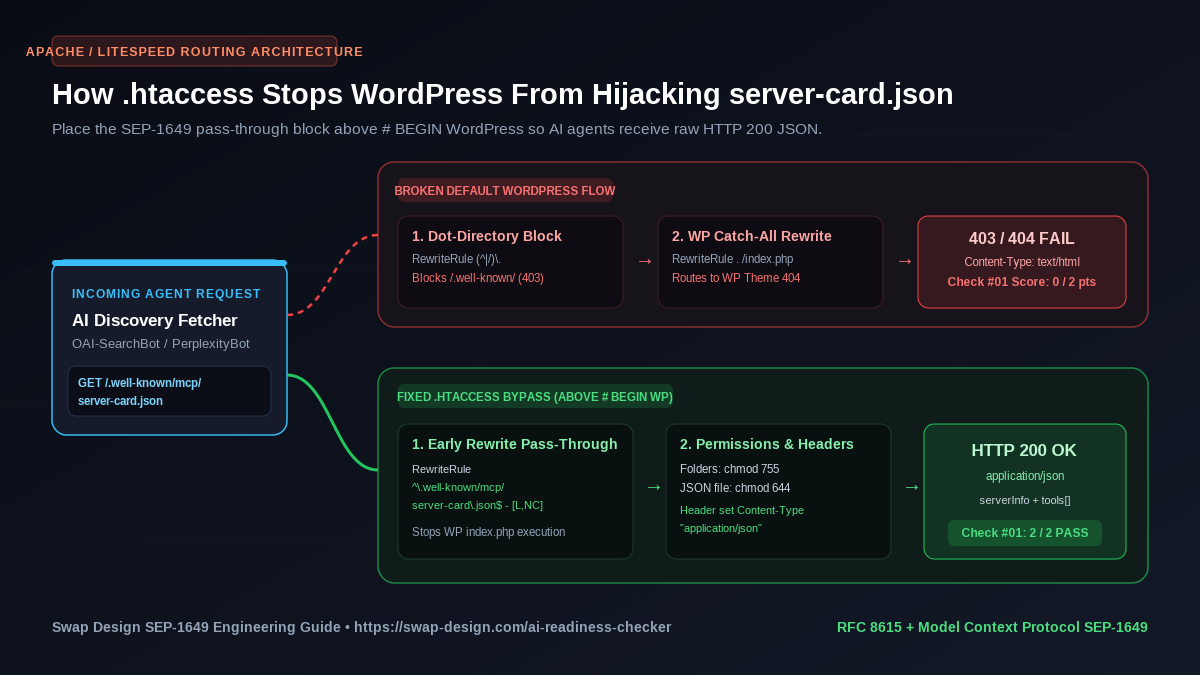
HTTP Error Diagnosis Table: 403 vs. 404 vs. Soft-404 HTML
Different server errors on /.well-known/mcp/server-card.json point to different configuration layers. Match your exact HTTP status code and Content-Type header below before editing files:
| HTTP Response Returned | Exact Root Cause | 1-Line Server Fix |
|---|---|---|
403 Forbidden |
LiteSpeed/Apache dotfile block ((^|/)\.) or wrong folder chmod (700/600) blocking /.well-known/. |
Add <Files "server-card.json"> Require all granted </Files> and set folders 755, file 644. |
404 Not Found |
WordPress Permalink catch-all (RewriteRule . /index.php [L]) intercepts the URI or file sits outside public_html. |
Place RewriteRule ^\.well-known/mcp/server-card\.json$ - [L,NC] above # BEGIN WordPress. |
200 OK with text/html instead of application/json |
Rank Math / Redirection soft-404 fallback, Cloudflare edge cache serving old HTML, or missing JSON MIME header. | Force Header set Content-Type "application/json; charset=utf-8" inside <Files "server-card.json"> and purge cache. |
Step-by-Step Fix: Complete SEP-1649 MCP Server Card Setup in WordPress
Follow these four steps in order on Hostinger hPanel, cPanel, or any Apache/LiteSpeed VPS. Total hands-on time is under ten minutes.
Step 1: Create /.well-known/mcp/server-card.json With 755 & 644 Permissions
Open your Hostinger File Manager or cPanel File Manager inside public_html (your WordPress root folder where wp-config.php lives). Click Settings and toggle Show Hidden Files (dotfiles) on; otherwise the .well-known folder stays invisible.
If .well-known does not exist (most SSL hosts already have it for AutoSSL/Let's Encrypt), create it. Inside .well-known, create a subfolder named mcp, and inside mcp create a new file named server-card.json.
Verify Unix permissions immediately via File Manager or SSH so LiteSpeed never throws a 403 permission denial:
mkdir -p public_html/.well-known/mcp
chmod 755 public_html/.well-known
chmod 755 public_html/.well-known/mcp
chmod 644 public_html/.well-known/mcp/server-card.json
Step 2: Paste a Valid Production SEP-1649 server-card.json Template
AI-agent scanners check that your JSON parses with zero syntax errors and exposes serverInfo plus resources or tools. Paste the template below into /.well-known/mcp/server-card.json and swap in your own domain, contact email, and service descriptions:
{
  "$schema": "https://modelcontextprotocol.io/schemas/mcp-server-card/v1.json",
  "protocolVersion": "2025-03-26",
  "name": "Your Business MCP Server",
  "version": "1.0.0",
  "url": "https://yourdomain.com",
  "documentationUrl": "https://yourdomain.com/llms.txt",
  "serverInfo": {
    "name": "Your Business MCP Server",
    "version": "1.0.0",
    "homepage": "https://yourdomain.com/"
  },
  "authentication": {
    "type": "none",
    "required": false
  },
  "resources": [
    {
      "uri": "https://yourdomain.com/llms.txt",
      "name": "LLMs Context Directory",
      "description": "Services, USD pricing, and canonical links.",
      "mimeType": "text/plain"
    },
    {
      "uri": "https://yourdomain.com/sitemap.xml",
      "name": "XML Sitemap",
      "mimeType": "application/xml"
    }
  ],
  "tools": [
    {
      "name": "get_services",
      "description": "Return core service tiers, USD pricing, and delivery timelines.",
      "inputSchema": {
        "type": "object",
        "properties": {}
      }
    }
  ]
}
Avoid trailing commas after the last property in any object or array. One stray comma turns valid JSON into a parse failure even when the server returns HTTP 200.
Step 3: Add the .htaccess Bypass Above # BEGIN WordPress
Open public_html/.htaccess and paste this block at the very top, strictly above # BEGIN WordPress and above any security plugin dotfile rules. Placing it at the top stops WordPress permalinks and LiteSpeed dot-directory blocks from intercepting the request:
# ==============================================================================
# SEP-1649 MCP Server Card Pass-Through (Must sit ABOVE # BEGIN WordPress)
# ==============================================================================
<IfModule mod_rewrite.c>
    RewriteEngine On
    RewriteRule ^\.well-known/mcp/server-card\.json$ - [L,NC]
</IfModule>

<Files "server-card.json">
    <IfModule mod_authz_core.c>
        Require all granted
    </IfModule>
    <IfModule !mod_authz_core.c>
        Order allow,deny
        Allow from all
    </IfModule>
    <IfModule mod_headers.c>
        Header set Content-Type "application/json; charset=utf-8"
        Header set Access-Control-Allow-Origin "*"
        Header set Cache-Control "no-store, no-cache, must-revalidate, max-age=0"
        Header set X-Robots-Tag "index, follow"
    </IfModule>
</Files>

# BEGIN WordPress
Notice the Cache-Control: no-store header during rollout and Access-Control-Allow-Origin: * for browser-based AI scanners. If your host also blocks .json files via a global <FilesMatch "\.json$"> security rule, place this <Files "server-card.json"> block below that global deny rule so Apache's last-match precedence grants access cleanly.
Step 4: Purge LiteSpeed / Cloudflare Cache & Verify With curl -I
Even after fixing .htaccess, LiteSpeed Cache (hCDN on Hostinger) or Cloudflare may keep serving a cached 404 HTML response for up to 24 hours. Open LiteSpeed Cache → Toolbox → Purge All, and purge the exact URL https://yourdomain.com/.well-known/mcp/server-card.json inside Cloudflare Caching.
Then verify the raw HTTP response headers from your terminal with curl:
curl -i -sS https://yourdomain.com/.well-known/mcp/server-card.json | head -n 15Confirm three exact lines in the output before testing on any scanner:
HTTP/2 200(never301to a trailing slash, never403, never404)content-type: application/json; charset=utf-8(nevertext/html)- Valid JSON body starting with
{and containing"serverInfo"and"tools"
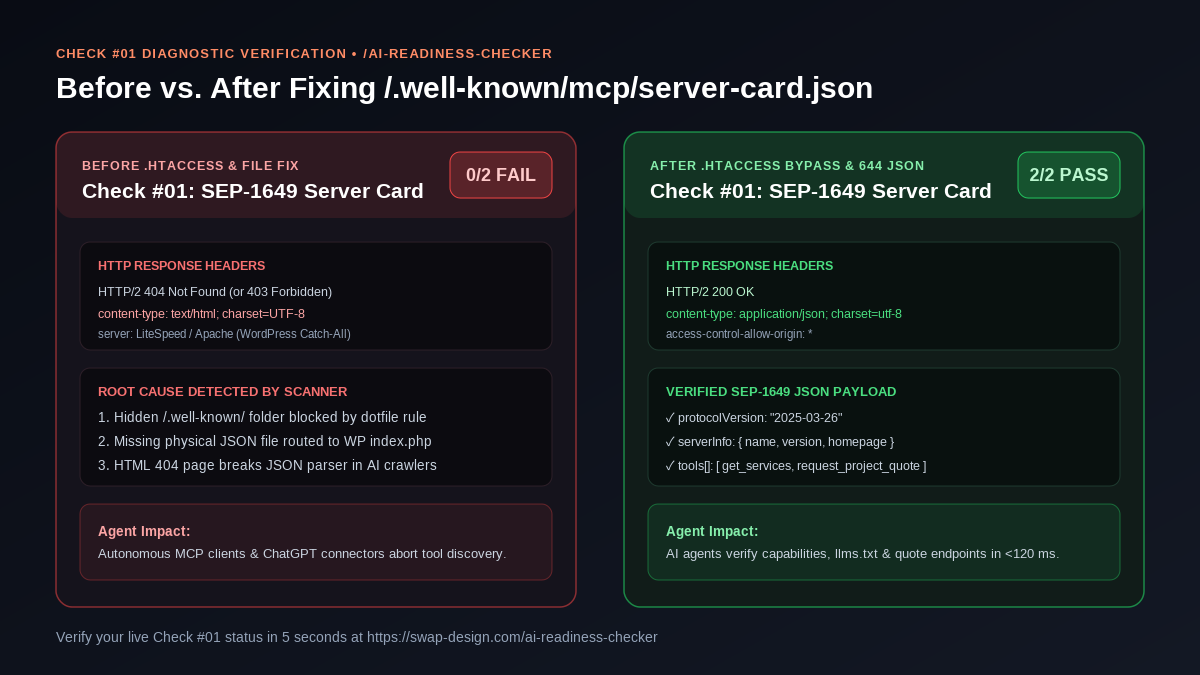
Real-World Proof: How Fixing Check #01 Helped Move techhubinsight.com From 4/10 to 10/10
When we audited our client publication TechHub Insight (techhubinsight.com), their WordPress + Elementor installation scored 4/10 on our scanner. Check #01 returned an HTML 404 because the default WordPress permalink rewrite swallowed every path under /.well-known/mcp/.
Adding the exact four-step .htaccess bypass above flipped Check #01 from 0/2 FAIL to 2/2 PASS on the very first curl check. Pairing that fix with /llms.txt, Accept: text/markdown negotiation, Content-Signal directives, and connected JSON-LD moved techhubinsight.com to a verified 10/10 Agent-Ready benchmark (passing 5/5 checks in 1,533 ms). To see all 5 technical reasons ChatGPT and Perplexity skip business websites, read the full diagnostic breakdown.
Want to deploy the remaining four endpoints yourself? You can copy our complete SEP-1649 & Markdown GEO production blueprint with ready-to-use Apache, PHP, and WebMCP code.
Test Your Server Card Live or Book a 48-Hour Setup
Run your domain right now to check if your MCP server card returns HTTP 200 JSON alongside all four remaining AI-agent discovery checks.
If your Hostinger, cPanel, or WordPress security plugin keeps rewriting /.well-known/ or you want a done-for-you 48-hour SEP-1649 & WebMCP setup without touching live server configs yourself, I build and deploy the full 10/10 stack directly:
- 5-Page Service Website + Full AI-Agent Readiness: $450 – $1,100 USD (ships in 5 to 7 business days, including
llms.txt, Markdown negotiation, and connected JSON-LD Schema). - Full Small Business Build + WebMCP & SEP-1649 Setup: $1,200 – $2,500 USD (ships in 2 to 3 weeks, including custom Gutenberg/PHP code, Core Web Vitals speed tuning, and verified SEP-1649 server card).
- Monthly Care, Security, Backups & GEO Monitoring: $120 – $250 / mo (weekly staging updates, offsite backups, and live AI crawler checks).
All work is billed in USD via Wire Transfer or PayPal with Morning EST/CST & Late PST overlap hours so you speak directly with the engineer fixing your server.