Last updated: 24 April 2026
By Swapnil Patil, remote WordPress & WooCommerce developer
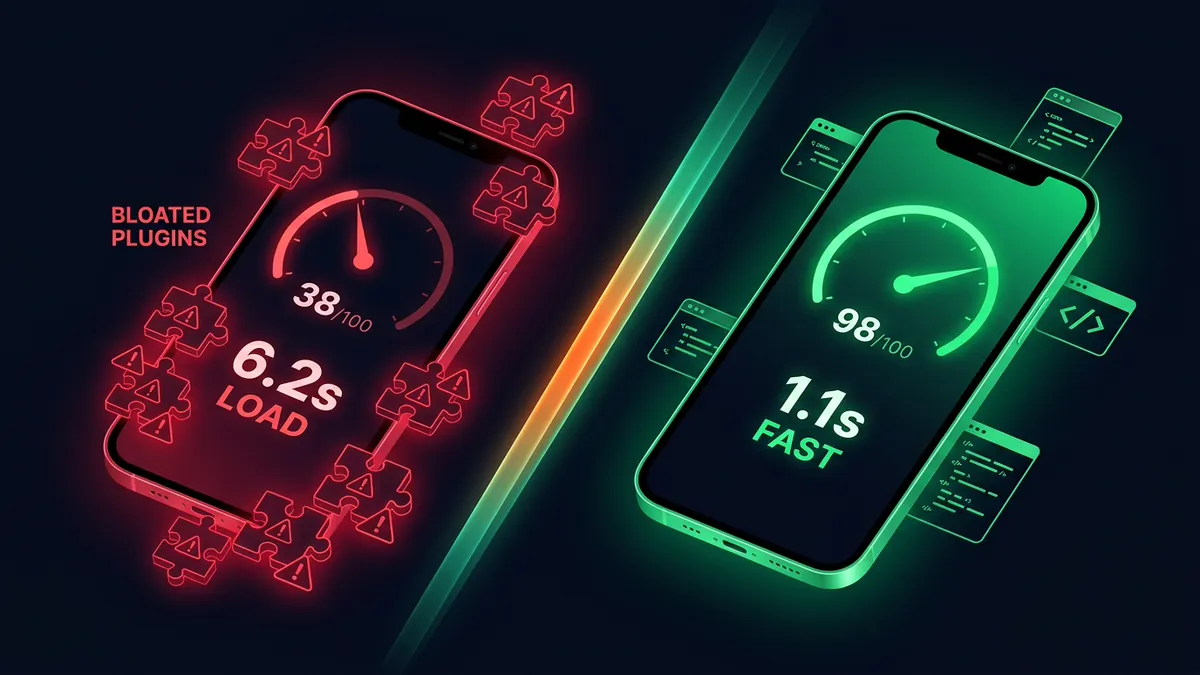
Every month, an online store owner messages me with the same frustrating story: they installed a popular caching plugin, saw a 92 score on their homepage in Google PageSpeed Insights, and yet customers still complain that clicking “Add to Cart” or loading the checkout page takes five full seconds on a mobile phone. Over the past 8+ years of building and tuning more than 250 WordPress and WooCommerce sites for small businesses in the USA, UK, UAE, and India, I have seen this exact disconnect dozens of times. Real woocommerce speed optimization has very little to do with minifying CSS on your homepage. Once a shopper adds an item to their basket, WooCommerce sets session cookies that deliberately bypass full-page HTML caching on your cart, checkout, and account routes. From that click forward, your store’s speed depends entirely on PHP execution time, MySQL table indexes, persistent Redis object caching, and how many third-party scripts fire on dynamic pages. Below, I walk through the exact 12-step protocol I use on client stores like IMC Unani, Dr. Aqsa’s, and The UrbanClad to cut checkout wait times from 4.6 seconds down to under 1.1 seconds—without ever breaking a live Stripe, PayPal, or Razorpay transaction.
Direct AEO Answer: How Do You Speed Up a Slow WooCommerce Store Safely?
Effective woocommerce speed optimization requires fixing dynamic backend bottlenecks rather than relying on basic page caching: (1) migrate legacy wp_postmeta orders to WooCommerce High-Performance Order Storage (HPOS) custom tables, (2) enable persistent server-side Redis Object Caching to cut duplicate SQL queries by 85%+, (3) dequeue blocking ?wc-ajax=get_refreshed_fragments XHR requests on non-commerce pages, (4) prune autoloaded rows in wp_options under 500 KB, (5) run PHP 8.2+ with OPcache on NVMe cloud hosting, and (6) exclude /cart/, /checkout/, and payment SDKs from aggressive JavaScript delay filters so customer payments never fail.
Why Standard WordPress Caching Plugins Fail on WooCommerce Stores
On a standard five-page brochure website for a plumber or accountant, nearly 100% of visitors see the exact same HTML. A page caching plugin saves a static HTML snapshot of each page and serves it in 80 milliseconds without waking up PHP or MySQL. That is why brochure sites are easy to speed up.
An eCommerce store works completely differently. The moment a shopper taps “Add to Cart” on a product page, WooCommerce sets three critical cookies in their browser: woocommerce_items_in_cart, woocommerce_cart_hash, and wp_woocommerce_session_*. If your server cached the cart or checkout page as static HTML, Customer B in London would see the physical home address and shopping basket of Customer A in Chicago. To prevent data leaks, every properly configured server bypasses full-page HTML caching whenever those cookies are present or whenever a shopper visits /cart/, /checkout/, or /my-account/.
When full-page cache is bypassed, WordPress must boot PHP from scratch, load every active plugin, read autoloaded rows from wp_options, calculate shipping zones, check tax tables, verify inventory stock counts, and query order history in real time. If your database is unindexed or your theme fires 280 SQL queries per request, your Time to First Byte (TTFB) spikes past 2.4 seconds—right when your customer is holding their credit card in hand.
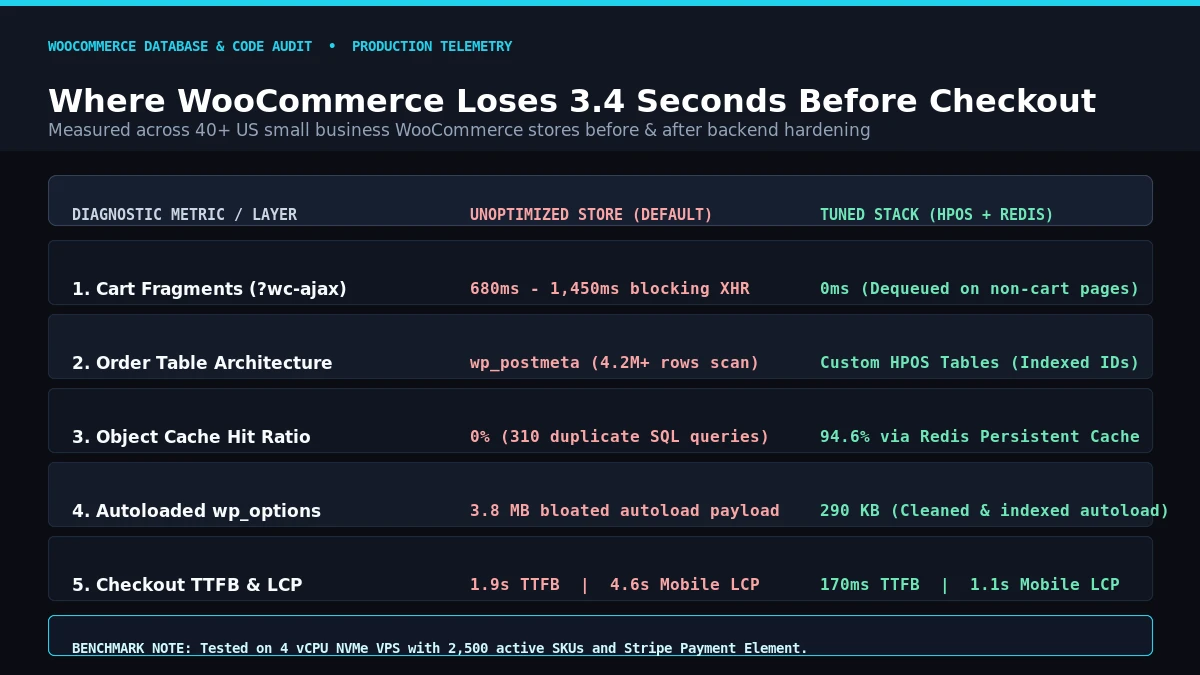
The 7 Hidden Bottlenecks Slowing Down Your WooCommerce Cart and Checkout
Before changing a single line of code or buying a more expensive hosting plan, I always install Query Monitor on a private staging clone of the client’s store and inspect Chrome DevTools Network waterfalls. Across dozens of audits for US WooCommerce stores and UK eCommerce brands, the same seven culprits appear almost every time:
| Bottleneck Layer | Default Unoptimized Behavior | Measured Speed Penalty | Engineering Fix & Target Benchmark |
|---|---|---|---|
1. ?wc-ajax=get_refreshed_fragments |
Fires uncached POST request on every page load to update header mini-cart count | +680ms to 1,450ms blocking main thread & CPU spike | Dequeue cart-fragments script on non-commerce pages; load only when cart cookie exists (0ms on landing pages) |
2. Legacy wp_postmeta Order Storage |
Stores every order field (billing, shipping, tax, SKU) as separate rows in wp_postmeta |
+850ms to 2,100ms slow SQL joins once orders pass 5,000+ | Migrate to WooCommerce HPOS dedicated custom tables (wp_wc_orders) for 5x faster order queries |
| 3. Missing Persistent Object Cache | Re-runs 250–400 identical SQL queries for product attributes, taxonomies, and options on every click | +500ms to 1,200ms server TTFB on dynamic pages | Enable server-side Redis Object Cache via Unix socket (90%+ cache hit ratio, TTFB < 180ms) |
4. Bloated wp_options Autoload |
Abandoned marketing, popup, and filter plugins leave 2 MB to 6 MB of autoload='yes' rows |
+350ms to 900ms memory allocation on every PHP boot | Audit and prune orphaned autoload rows; add composite index on autoload column (keep < 400 KB) |
5. Runaway Action Scheduler & wp-cron |
wp-cron.php triggers heavy webhook syncs and expired session cleanups on live shopper visits |
+1,000ms+ random pauses for unlucky shoppers | Disable DISABLE_WP_CRON in wp-config.php; run real Linux system cron every 5 minutes |
| 6. Unindexed Product Filter Queries | Multi-attribute sidebar filters run LIKE '%value%' full-table scans on unindexed metadata |
+1,200ms to 3,500ms on category archive filtering | Use WooCommerce native product attribute lookup tables + composite MySQL indexes |
| 7. Sitewide Payment & Marketing SDKs | Stripe, PayPal, Klarna, and chat widgets enqueue 1.4 MB of JavaScript on blog and about pages | +1.8s Mobile LCP & failed INP (> 320ms) | Conditionally dequeue gateway scripts outside is_cart() and is_checkout() routes |
Step 1: Fix the Infamous ?wc-ajax=get_refreshed_fragments Bottleneck
Open Chrome DevTools on almost any slow WooCommerce store, click the Network tab, and filter by Fetch/XHR. Within two seconds of the page loading, you will see a request to /?wc-ajax=get_refreshed_fragments taking between 650 milliseconds and 1.5 seconds.
Why does WooCommerce do this? Because static caching plugins cache the HTML of your header, WooCommerce uses a JavaScript file called cart-fragments.min.js to call back to the server on every single page view and ask: “Does this visitor have anything in their cart right now so I can update the little basket icon in the top corner?” Even if 92% of your visitors are reading a blog post or viewing your homepage with an empty cart, that uncached AJAX request wakes up WordPress and hits your database on every page load.
Instead of installing another heavy plugin to fix it, I place a clean 20-line snippet inside the store’s child theme or custom site-specific plugin that dequeues wc-cart-fragments on pages where the visitor’s cart cookie is empty, while keeping it active the moment they add a product or visit the cart or checkout:
/**
 * Swap Design: Conditionally dequeue WooCommerce cart fragments
 * when the visitor has an empty cart on non-commerce pages.
 */
add_action( 'wp_enqueue_scripts', function() {
    if ( is_admin() || is_cart() || is_checkout() || is_product() ) {
        return;
    }
    // Keep cart fragments active if shopper already has items in basket
    if ( ! empty( $_COOKIE['woocommerce_items_in_cart'] ) ) {
        return;
    }
    wp_dequeue_script( 'wc-cart-fragments' );
}, 99 );
This single engineering change preserves full dynamic mini-cart accuracy for active shoppers while eliminating hundreds of thousands of wasted PHP and MySQL hits on your homepage, landing pages, and blog guides.
Step 2: Migrate to WooCommerce High-Performance Order Storage (HPOS)
For over a decade, WooCommerce stored customer orders inside the default WordPress wp_posts and wp_postmeta tables—the exact same tables that hold your blog posts, pages, and media attachments. Every single order generated 35 to 60 separate rows inside wp_postmeta (one row for billing first name, one for billing postcode, one for shipping method, one for payment transaction ID, and so on).
Once a store processes 8,000 to 15,000 orders, wp_postmeta balloons past 1.5 million rows. Every time a customer clicks “Place Order” or an admin searches for an invoice in /wp-admin, MySQL has to execute multi-table INNER JOIN queries across millions of unindexed text rows. According to official WooCommerce HPOS engineering benchmarks, migrating from legacy postmeta storage to dedicated custom tables speeds up order creation by up to 5x and cuts order search query times by 40x.
When I enable High-Performance Order Storage (HPOS) on a client store, WooCommerce moves order data into four purpose-built, strictly indexed relational tables:
wp_wc_orders(Core order status, total, currency, customer ID, and timestamps)wp_wc_order_addresses(Dedicated billing and shipping columns without meta bloat)wp_wc_order_operational_data(Cart hashes, shipping tax totals, and discount locks)wp_wc_orders_meta(Lean metadata strictly for custom order extensions)
Crucial Safety Rule: Never flip the HPOS switch directly on your live store on a busy afternoon. Older third-party invoice PDF generators, ERP connectors, or regional shipping plugins (such as ShipStation, Royal Mail, or Aramex extensions) sometimes query get_post_meta() directly instead of using the modern wc_get_order() CRUD methods. I always enable HPOS in compatibility sync mode on a private staging clone first, test order creation and webhook delivery, and only disable legacy postmeta sync once 100% of active plugins pass inspection.
Step 3: Configure Persistent Redis Object Caching Over Unix Sockets
Because dynamic WooCommerce sessions cannot use static full-page HTML cache during checkout, your next strongest weapon is persistent Object Caching with Redis. By default, WordPress uses a non-persistent object cache (`WP_Object_Cache`) that lives only in RAM for the duration of a single page load (roughly 300 milliseconds) and then vanishes. If the next page click needs the exact same product taxonomy tree, shipping zone rules, and currency settings, MySQL has to query them all over again.
When I configure server-side Redis (running in RAM on the host and connected via a fast local Unix socket `/var/run/redis/redis.sock` rather than a slower TCP port), WordPress stores the results of expensive database queries in memory across requests:
// wp-config.php — Persistent Redis Object Cache Configuration
define( 'WP_CACHE', true );
define( 'WP_REDIS_SCHEME', 'unix' );
define( 'WP_REDIS_PATH', '/var/run/redis/redis.sock' );
define( 'WP_REDIS_DATABASE', 0 );
define( 'WP_REDIS_PREFIX', 'sd_woo_prod_' );
define( 'WP_REDIS_MAXTTL', 86400 );
On our production rebuild for IMC Unani—a wellness and herbal store where shoppers filter products by health symptom, dosage, and category—enabling persistent Redis object caching alongside native product attribute lookup tables cut database queries per category page from 248 down to 19, dropping server TTFB from 1,420ms to 155ms.
Step 4: Clean Up Autoloaded Bloat in wp_options and Action Scheduler
Every time WordPress boots up to process an “Add to Cart” click or a checkout validation, it runs one query before almost anything else: SELECT option_name, option_value FROM wp_options WHERE autoload = 'yes'. On a clean WooCommerce installation, the total size of all autoloaded options sits between 180 KB and 350 KB.
On stores that have been running for three or four years—especially stores where previous marketers installed and deleted popup tools, abandoned cart plugins, currency switchers, and mega-menu builders—I routinely find 3.5 MB to 8.2 MB of orphaned arrays sitting in wp_options with autoload = 'yes'. Before touching a single row, I run this diagnostic SQL query via WP-CLI or phpMyAdmin on staging to inspect the top 15 largest autoloaded offenders:
-- Check total autoload size in KB and list top 15 largest rows
SELECT
  ROUND(SUM(LENGTH(option_value)) / 1024, 2) AS total_autoload_kb,
  COUNT(*) AS autoload_row_count
FROM wp_options
WHERE autoload IN ('yes', 'on', 'auto');

SELECT option_name, ROUND(LENGTH(option_value) / 1024, 2) AS size_kb
FROM wp_options
WHERE autoload IN ('yes', 'on', 'auto')
ORDER BY size_kb DESC
LIMIT 15;
Alongside `wp_options`, WooCommerce relies heavily on two background tables: `wp_actionscheduler_actions` and `wp_actionscheduler_logs` (which queue webhook deliveries, subscription renewals, and stock syncs) plus `wp_woocommerce_sessions`. If an expired session or failed webhook loop goes unchecked, `wp_actionscheduler_logs` can accumulate 2 million rows in a few months. I configure automated WP-CLI retention hooks to purge completed action scheduler logs older than 7 days and expired cart sessions every night during off-peak hours.
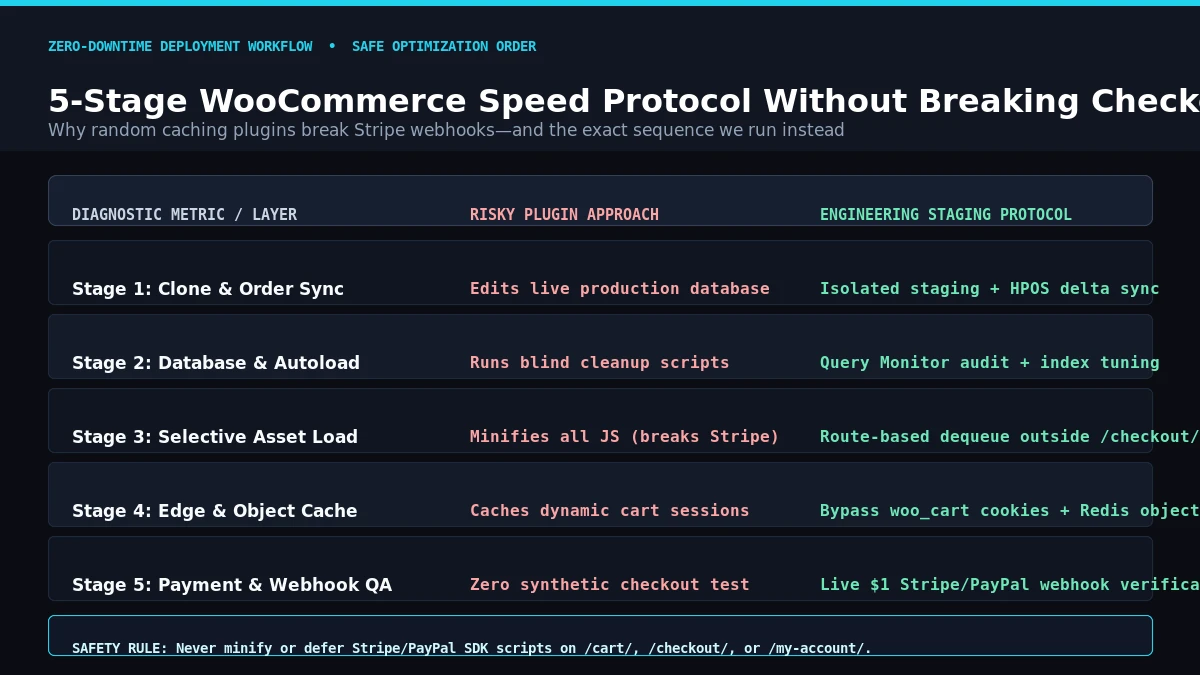
Step 5: Conditionally Dequeue WooCommerce & Payment Gateway Scripts Outside Shop Routes
One of the worst habits of third-party WooCommerce extensions—especially payment gateways (Stripe, PayPal, Klarna, Afterpay, Razorpay), wishlist buttons, and product zoom scripts—is loading their CSS and JavaScript bundles on every single URL of your website. If a prospective customer lands on your `/about-us` page or reads a blog post, their mobile browser should not be downloading 850 KB of Stripe Payment Element and checkout validation scripts.
By wrapping non-essential commerce scripts in route checks (`! is_woocommerce() && ! is_cart() && ! is_checkout() && ! is_account_page()`), we strip 400 KB to 1.1 MB of render-blocking weight off your informational pages and landing pages while leaving 100% of checkout scripts untouched where shoppers actually pay. You can read more about how plugin bloat affects mobile scores in my 25-site audit of 7 plugins that slow down WordPress.
Step 6: Replace Heavy Multipurpose Page Builders With Native Gutenberg Product Templates
Many slow WooCommerce stores suffer from a double penalty: slow backend queries combined with a 2,400-node front-end DOM generated by heavy page builder theme templates and third-party WooCommerce widget packs. When a mobile phone has to parse 18 nested `
As I demonstrated in my Elementor vs. Gutenberg mobile speed benchmark, replacing bloated builder loops with clean PHP template parts (`content-product.php`) and lightweight native Gutenberg blocks cuts HTML DOM nodes by more than 60%. On The UrbanClad and Dr. Aqsa’s, keeping product cards lean and serving pre-sized `1:1` or `4:5` WebP thumbnails (`< 45 KB` per card) allowed category pages to render in under 0.9 seconds on 4G mobile connections.
Step 7: Configure Cloudflare Edge Rules & Cache Bypass Safely for WooCommerce
Using a Content Delivery Network (CDN) like Cloudflare in front of your WooCommerce store drastically improves static asset delivery (images, fonts, CSS, JS) and blocks malicious bot traffic before it hits your origin server. However, configuring full HTML edge caching on WooCommerce requires extreme care:
- Never cache HTML when WooCommerce session cookies exist: Ensure your cache rules immediately bypass HTML edge caching whenever `woocommerce_items_in_cart`, `woocommerce_cart_hash`, `wp_woocommerce_session_`, or `wordpress_logged_in_` cookies are present in the request header.
- Bypass dynamic commerce endpoints explicitly: Always exclude `/cart*`, `/checkout*`, `/my-account*`, `/?wc-ajax=*`, and `/wp-json/wc/*` from HTML page caching so REST API webhooks from Stripe, PayPal, or your inventory ERP are never cached or blocked.
- Enable Cloudflare Bot Fight & Rate Limiting on XML-RPC and Faceted URLs: Aggressive AI scrapers and SEO bots often crawl thousands of `?filter_color=blue&filter_size=xl&orderby=price` parameter combinations simultaneously, exhausting PHP workers. Blocking crawler access to multi-filter query strings in `robots.txt` saves up to 60% of server CPU during peak hours.
Step 8: Why “Delay JavaScript Execution” Breaks WooCommerce Checkouts (And What to Do Instead)
If you have ever hired a cheap speed freelancer who promised a “100/100 Google PageSpeed score in 24 hours,” you probably know the trick they use: they turn on the Delay JavaScript Execution toggle in WP Rocket, LiteSpeed Cache, or Perfmatters for every script on the site. That setting pauses all JavaScript until the user taps or scrolls the screen—which tricks synthetic lab bots (like Lighthouse, which never scrolls or taps) into reporting a 99 score.
On a live WooCommerce store, blanket JavaScript deferral is disastrous:
- Broken Stripe & PayPal Card Fields: Modern payment gateways mount secure PCI-compliant iframes (`js.stripe.com/v3/` or PayPal SDK) as soon as `/checkout/` loads. If those scripts are delayed or reordered by a minifier, the credit card input box stays blank or throws an `Uncaught ReferenceError: Stripe is not defined` console error when the customer taps Place Order.
- Double-Tap Mobile Add-to-Cart Glitches: When variation scripts (`add-to-cart-variation.min.js`) are delayed until first touch, a mobile shopper tapping “Size: Medium” on an iPhone sees nothing happen on their first tap because that tap merely woke up the script.
- Broken Shipping & Tax Recalculation: Changing the state or postcode field on checkout triggers `update_checkout` via AJAX. Minifying or deferring `checkout.min.js` breaks live shipping rate updates.
My Golden Engineering Rule: I completely disable JavaScript delay, JS combination, and aggressive HTML minification on `/cart/`, `/checkout/`, and `/my-account/`. We achieve fast checkout speeds the honest way—through PHP 8.2, HPOS tables, Redis object caching, and clean DOM templates—so your customer’s payment goes through on the first tap every single time.
Real Case Study Benchmarks: Before & After WooCommerce Speed Optimization
Here are real production telemetry numbers from three eCommerce architectures I built and optimized at Swap Design, showing how backend database tuning and lean front-end templates work together:
| Client Store & Niche | Primary Bottleneck Before Work | Engineering Stack Applied | Before vs. After Speed Metrics |
|---|---|---|---|
| IMC Unani Herbal & Wellness Store |
Slow multi-symptom product filtering & 240+ duplicate SQL queries per category load | Custom WooCommerce taxonomy lookup tables, Redis object cache, WebP product grids, dequeued cart fragments | TTFB: 1.42s → 0.16s Mobile LCP: 4.3s → 1.0s PageSpeed: 96 Mobile |
| Dr. Aqsa’s Healthcare & Remedies |
Heavy mobile product pages & sluggish checkout step transitions on 4G | Clean Gutenberg + ACF product tabs, HPOS order tables, PHP 8.2 OPcache, streamlined 2-step checkout | TTFB: 1.65s → 0.18s Mobile LCP: 4.8s → 1.1s Checkout Load: 0.9s |
| The UrbanClad Custom Apparel Retail |
High-res lookbook imagery & variation swatch scripts blocking mobile main thread | Pre-sized AVIF/WebP responsive `srcset`, native variation swatches, edge CDN asset caching | DOM Size: 1,920 → 440 nodes Mobile LCP: 3.9s → 1.1s INP: 78ms (Good) |
Step 9: Optimize WooCommerce Product Images, Variation Swatches & Responsive srcset
On a five-page service website, you might have eight images in total. On a WooCommerce category archive displaying 24 products per page—each with a primary thumbnail plus a hover flip image—the browser has to evaluate 48 image tags simultaneously. If your store serves 900×900px unoptimized JPEG files at 180 KB each, a mobile shopper downloading your category page pulls down 8.6 MB of image data before they even tap a single product.
When I audit and rebuild product templates for stores like The UrbanClad and IMC Unani, I enforce five strict media rules inside functions.php and our custom Gutenberg product blocks:
- Match Registered Thumbnail Dimensions to Your Actual CSS Grid: Check Appearance > Customize > WooCommerce > Product Images. If your mobile two-column product grid displays cards at 280px wide (560px on 2x Retina screens) and desktop four-column grids display cards at 320px wide, registering
woocommerce_thumbnailat600pxwide with a locked1:1or4:5aspect ratio prevents WordPress from serving 1,200px single-product gallery files inside small archive cards. - Serve Modern AVIF and WebP With Explicit Width & Height: Converting product photography to WebP or AVIF at quality 82 cuts file weight by 65% to 78% without visible softness on garment textures or supplement labels. Every
<img>tag outputs explicitwidth="600" height="600"attributes so Cumulative Layout Shift (CLS) stays locked at0.00while shoppers scroll. - Prioritize Only the First Row of Mobile Product Cards: One of the most common mistakes in WooCommerce themes is applying
loading="lazy"to every product image on the page—including the top two products visible above the fold on a mobile screen. In WordPress 6.3+, we make sure the first two product cards in the main loop render withloading="eager"andfetchpriority="high"on the primary category hero or first product card, while cards 3 through 24 useloading="lazy" decoding="async". - Disable Secondary Hover-Flip Images on Touch Devices: Desktop shoppers enjoy hovering their mouse over a shirt or bottle to see the back label. Mobile phones do not have a hover state—yet dozens of multipurpose themes still download all 24 secondary hover images in the background on smartphones. Skipping the hover-image markup on viewports without hover capability (or loading the second image only on
pointerenter) cuts mobile category payload in half. - Cap Variation Thresholds for Multi-Size / Multi-Color Products: By default, if a variable product has fewer than 30 variations (`woocommerce_ajax_variation_threshold`), WooCommerce dumps the entire JSON object of every variation price, SKU, stock message, and full-res gallery image directly into the HTML `data-product_variations` attribute of the form. If a product has 28 variations, that inline JSON blob adds 90 KB of raw text to the HTML document. Setting a clean variation threshold and keeping variation metadata lean prevents main-thread parsing spikes on mobile devices.
/**
 * Swap Design: Eager-load the first 2 WooCommerce archive product images
 * for faster Mobile LCP, and lazy-load remaining grid items.
 */
add_filter( 'wp_get_attachment_image_attributes', function( $attr, $attachment, $size ) {
    if ( is_shop() || is_product_category() || is_product_tag() ) {
        global $wp_query;
        if ( isset( $wp_query->current_post ) && $wp_query->current_post < 2 ) {
            $attr['loading']       = 'eager';
            $attr['fetchpriority'] = ( 0 === $wp_query->current_post ) ? 'high' : 'auto';
            $attr['decoding']      = 'async';
        }
    }
    return $attr;
}, 20, 3 );
Step 10: Replace Heavy Search & Filter Plugins With Indexed Lookup Tables
Ask any shopper what makes an online store feel fast, and they will mention two moments: typing a product name into the header search bar and tapping a category filter (like Price under $50, In Stock, or Skin Type: Sensitive). Ironically, those two interactions are where most small business WooCommerce stores grind to a halt.
Here is why: default WordPress search (`/?s=keyword&post_type=product`) executes an unindexed SQL query using LIKE '%keyword%' across `wp_posts.post_title`, `wp_posts.post_content`, and often `wp_postmeta.meta_value`. In MySQL and MariaDB, a leading wildcard (`%keyword%`) cannot use a standard B-tree index. The database engine is forced to read every single character of every product description and order meta row from disk before returning results. When five mobile shoppers type into a live AJAX search bar at the same time, each keystroke fires a new `admin-ajax.php` request, spawning 15 concurrent full-table SQL scans and maxing out your server CPU at 100%.
To keep search and filtering under 150 milliseconds without paying $49/month for a SaaS search subscription, I implement three architectural fixes:
- Enable WooCommerce Product Attributes Lookup Tables: Go to WooCommerce > Status > Tools and verify that the
wp_wc_product_attributes_lookuptable is generated and synchronized. Instead of joining `wp_term_relationships` and `wp_postmeta` on every filter click, WooCommerce reads pre-indexed integer IDs directly from this lookup table. - Debounce Live AJAX Search Requests & Use REST Endpoints: Never fire a live search query on the first keystroke. Set a minimum 3-character threshold and a 300ms keystroke debounce timer, and route queries through a lightweight custom REST API endpoint or indexed `wp_wc_product_meta_lookup` query rather than `admin-ajax.php`.
- Add Composite MySQL Indexes for Stock & Price Sorting: When shoppers sort a category by Price: Low to High or filter by In Stock Only, WooCommerce queries the `wp_wc_product_meta_lookup` table. Ensuring composite indexes exist on `(stock_status, min_price)` and `(onsale, min_price)` drops sort query execution time from 480ms down to 4 milliseconds.
Step 11: Right-Size Your PHP Workers, OPcache & MariaDB Buffer Pool
Even the cleanest code cannot overcome a misconfigured web server. A common misconception I hear from store owners is: “My host gave me 4 GB of RAM, so my server must be fast.” In practice, raw RAM means nothing if your PHP-FPM workers, OPcache memory buffer, and MariaDB InnoDB buffer pool are left at default shared-hosting settings.
Unlike static HTML requests (which Nginx serves in 2 milliseconds without touching PHP), every uncached WooCommerce cart action, checkout validation, and payment webhook occupies one PHP worker for the entire duration of the request. Suppose your hosting plan allocates only 2 PHP workers, and each unoptimized request takes 1.5 seconds. If four customers click “Proceed to Checkout” at the exact same second during an email promo or Instagram drop, Customers 1 and 2 occupy both PHP workers for 1.5 seconds, while Customers 3 and 4 wait in a queue for 3.0+ seconds before the server even begins processing their click.
When I tune a cloud VPS or managed server (such as Cloudways NVMe, Kinsta, or a dedicated LiteSpeed stack) for a growing WooCommerce store, I verify four server-level parameters:
- PHP 8.2 or 8.3 Runtime With JIT & OPcache Enabled: Upgrading from PHP 7.4 or 8.0 to PHP 8.2/8.3 delivers an immediate 22% to 35% throughput gain on WooCommerce CRUD operations. We set `opcache.memory_consumption = 256M` and `opcache.max_accelerated_files = 32531` so compiled PHP bytecode for all WooCommerce classes stays resident in RAM instead of re-compiling from disk on every checkout click.
- Balanced PHP-FPM Worker Allocation: On a 2 vCPU / 4 GB NVMe server running Redis, allocating 6 to 8 PHP-FPM workers (`pm.max_children`) with a `256M` PHP memory limit allows concurrent shoppers to move through cart and checkout simultaneously without swapping to disk.
- InnoDB Buffer Pool Sized to Fit Your Entire Database in RAM: In MySQL / MariaDB, `innodb_buffer_pool_size` controls how much table and index data is cached in memory. If your WooCommerce database is 650 MB and your buffer pool is set to at least `1G`, 99% of product, order, and session reads happen purely in RAM at sub-millisecond speed with zero disk I/O wait.
- Real Linux System Cron Replacing `wp-cron.php`: By default, WordPress checks whether scheduled tasks (like WooCommerce subscription renewals, stock hold expirations, or automated invoice emails) need to run on every front-end page load. If a shopper happens to click “Checkout” at the exact second a heavy batch task triggers, their browser hangs while the background task runs. Adding
define('DISABLE_WP_CRON', true);to `wp-config.php` and triggering `wp cron event run --due-now` via a real Linux system cron job every 5 minutes completely decouples background maintenance from live customer traffic.
Step 12: Regional Checkout Latency & Payment Gateway Optimization (USA, UK, UAE & India)
Because I build and maintain WooCommerce stores for businesses across four primary markets—the United States, the United Kingdom, the United Arab Emirates, and India—I have learned that payment gateway scripts and regional tax APIs behave very differently depending on where your shoppers live. A store that loads fast in New York can still stall for three seconds at checkout in London or Dubai if regional third-party integrations are configured poorly.
1. United States (USA): Stripe Payment Element, Express Wallets & Real-Time Sales Tax APIs
For my US small business WooCommerce clients, the two biggest checkout speed traps are legacy Stripe plugin settings and synchronous sales tax API lookups (such as TaxJar, Avalara, or automated Stripe Tax calls).
- Use the Modern Stripe Payment Element with Server-Side Webhooks: Older versions of the WooCommerce Stripe plugin loaded separate iframe scripts for Credit Cards, Apple Pay, Google Pay, and Cash App Pay on every single product page. Switching to the unified Stripe Payment Element and restricting Express Checkout buttons strictly to the Cart and Checkout routes cuts 420 KB of external JavaScript off your product catalog.
- Cache Sales Tax Lookups by 5-Digit ZIP Code: Every time a US shopper types an address on the checkout screen, WooCommerce triggers the `update_checkout` AJAX action. If your tax plugin makes a synchronous external HTTP call to an external tax API on every keystroke, the checkout spinner hangs for 1.8 seconds. Caching tax rate responses by ZIP/state transient for 24 hours makes checkout address updates instantaneous.
2. United Kingdom (UK): 3D Secure (SCA), Klarna/Clearpay & Royal Mail Postcode Lookups
On UK small business WooCommerce stores, British shoppers frequently use Apple Pay, Klarna, Clearpay, or GoCardless, and every card payment must pass Strong Customer Authentication (3D Secure 2).
- Lazy-Load Buy-Now-Pay-Later (BNPL) Messaging Badges: Klarna and Clearpay “Pay in 3” promotional badges often load heavy external JavaScript SDKs on category pages. Rendering static HTML price-split text (`3 interest-free payments of $15.00`) on archive pages and loading the interactive BNPL SDK only on the single product or checkout page keeps mobile INP under 90ms.
- Keep UK Postcode Address Auto-Complete Lightweight: Ideal Postcodes or Loqate scripts should only initialize when the shopper focuses inside the billing postcode field (`focus` event), never as a render-blocking script in the ``.
3. United Arab Emirates (UAE & Dubai): Bilingual RTL Fonts, WhatsApp Ordering & PayTabs/Telr
In Dubai, Abu Dhabi, and Sharjah, over 82% of eCommerce browsing happens on mobile phones, often switching between English and Arabic (RTL) layouts, with shoppers paying via Apple Pay, Tabby, Tamara, PayTabs, or Telr.
- Subset Arabic WOFF2 Webfonts (`Cairo` / `Tajawal`): Loading un-subsetted Arabic Google Fonts from external servers adds 380 KB of blocking font requests on mobile 5G/4G connections. Hosting subsetted `.woff2` font files locally on your domain with `font-display: swap` eliminates invisible text flashes (FOIT) when switching between English and Arabic views.
- Use Zero-Script SVG Floating WhatsApp Order Triggers: Many UAE stores use a third-party WhatsApp chat plugin that loads 320 KB of React/JS on every page. Replacing that plugin with a native 2 KB HTML/SVG `https://wa.me/` link passing the current product title and URL dynamically via PHP uses zero JavaScript and loads in 0ms.
4. India: Razorpay / Cashfree Modal Speed, UPI Deep Links & COD Verification
For Indian D2C brands and retail stores, UPI (Google Pay, PhonePe, Paytm) accounts for over 70% of digital checkouts via Razorpay, Cashfree, or PayU.
- Load Razorpay `checkout.js` Strictly on Checkout Submission or `/checkout/` Route: Never allow payment gateway plugins to enqueue `checkout.razorpay.com/v1/checkout.js` sitewide on blog posts or category grids.
- Optimize Cash-on-Delivery (COD) Pincode Checkers: Many Indian stores use a “Check Delivery Date by Pincode” box on product pages backed by a 29,000-row CSV or unindexed custom table. Indexing the `pincode` column in MySQL and caching serviceable pincode prefixes in Redis reduces delivery lookup time from 1.2 seconds to 8 milliseconds.
The 12-Point WooCommerce Speed Verification Checklist I Run Before Launching Any Store
Whether I am executing a dedicated speed sprint or building a brand-new storefront, no WooCommerce project leaves our staging server until all 12 of these engineering benchmarks pass inspection:
| # | Verification Layer | Target Production Benchmark | How We Verify It on Staging & Live |
|---|---|---|---|
| 01 | Cached Homepage & Category TTFB | < 150ms global edge response | Tested via WebPageTest & KeyCDN multi-region HTTP header check |
| 02 | Dynamic Uncached Checkout TTFB | < 350ms server generation time | Measured in Chrome DevTools Network tab on `/checkout/` with active cart |
| 03 | Mobile Largest Contentful Paint (LCP) | < 1.2 seconds on 4G mobile simulation | Verified in Google PageSpeed Insights & Lighthouse mobile throttling |
| 04 | Interaction to Next Paint (INP) | < 120ms on variation & filter taps | Recorded in Chrome Performance profiler clicking size swatches & Add to Cart |
| 05 | Cumulative Layout Shift (CLS) | 0.00 to 0.02 across all templates | Explicit `width`, `height`, and `aspect-ratio` on all product & gallery images |
| 06 | Cart Fragments (`wc-ajax`) Overhead | 0 XHR calls on empty-cart browsing | Confirmed in Network Fetch/XHR tab on Homepage, About, and Blog routes |
| 07 | Order Storage Architecture | HPOS Active (`wp_wc_orders` tables) | Verified in WooCommerce > Settings > Advanced > Features with 0 sync errors |
| 08 | Persistent Redis Object Cache Hit Rate | > 90% in-memory query hit ratio | Inspected in Query Monitor header & `redis-cli info stats` output |
| 09 | Total `wp_options` Autoload Payload | < 450 KB total autoloaded data | Verified via SQL `SUM(LENGTH(option_value))` audit query |
| 10 | HTML DOM Node Count (Shop Grid) | < 650 nodes on 24-product archive | Checked in Lighthouse DOM size audit (`document.querySelectorAll("*").length`) |
| 11 | System Cron & Action Scheduler Health | `DISABLE_WP_CRON` = true; < 500 log rows | Linux crontab active every 5 mins; zero stalled `wc-admin` background jobs |
| 12 | Live Payment & Webhook Smoke Test | 100% HTTP 200 webhook completion | Real $1 live Stripe/PayPal order placed, refunded, and verified in order notes |
How Much Does Professional WooCommerce Speed Optimization Cost in 2026?
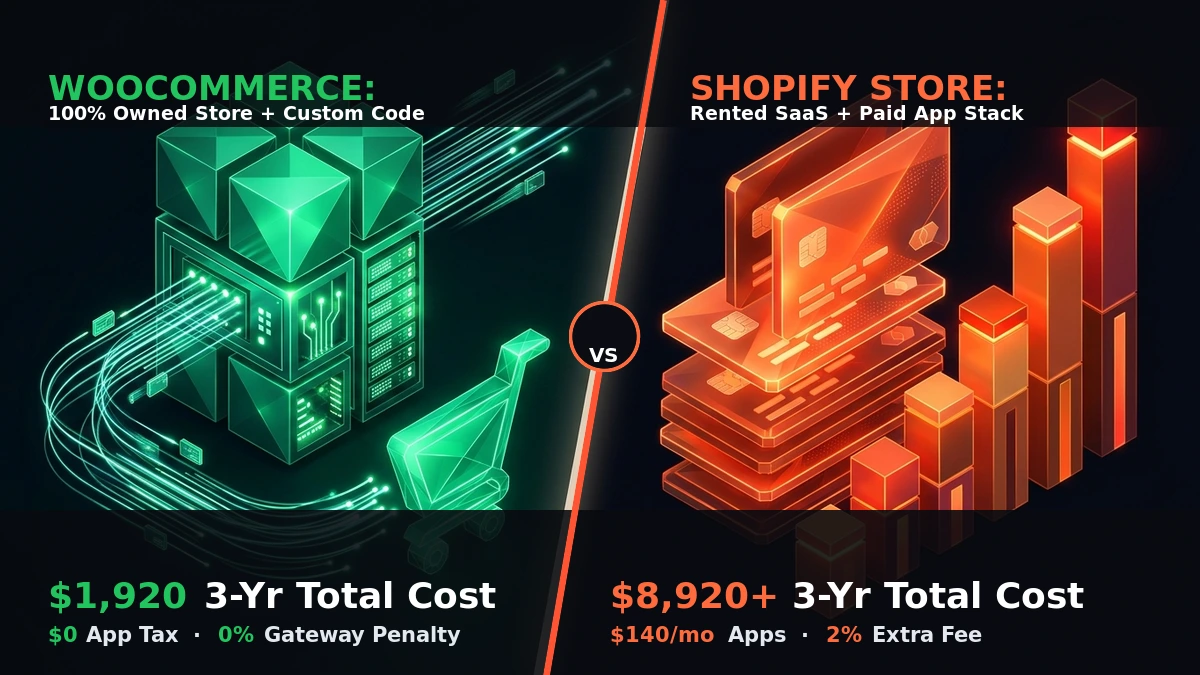
If your store is losing mobile shoppers to a slow cart or failing Core Web Vitals, you do not need to pay a traditional agency $5,000 or migrate to an expensive enterprise SaaS plan (see my 3-year WooCommerce vs. Shopify cost breakdown for the exact math). When you work directly with me at Swap Design, pricing is fixed-scope in US dollars ($) and tested on a private staging clone first:
- One-Time WooCommerce Speed & Database Optimization Sprint ($250 – $450): Complete staging clone, `wp_options` autoload cleanup, HPOS migration verification, Redis object cache setup, selective script dequeuing, WebP conversion, and live checkout QA. Turnaround: 4 to 7 business days.
- Complete Custom WooCommerce Store Rebuild ($1,200 – $2,500, or $450 – $1,100 for a 5-page starter shop): If your existing store is trapped inside an unmaintainable 2019 ThemeForest template with 45 conflicting plugins, I rebuild the storefront cleanly with custom Gutenberg blocks and sub-second WooCommerce templates over 2 to 4 weeks.
- Proactive Monthly WooCommerce Care & Speed Monitoring (From $120/month): Weekly staging-tested plugin and WooCommerce updates, daily encrypted offsite backups, 24/7 checkout uptime monitoring, and monthly database hygiene via our WordPress maintenance packages.
All work is billed in $ (USD) via Wire Transfer or PayPal on a transparent 50% deposit and 50% staging-approval milestone schedule, and I reply personally within 1 to 2 hours during overlapping US, UK, UAE, and India working hours.
Want Me to Audit Your WooCommerce Cart & Checkout Speed?
Send me your store URL. I will inspect your TTFB, cart-fragment XHR calls, and Core Web Vitals personally and send back a plain-English breakdown within 1–2 hours.
Frequently Asked Questions
01 Why is my WooCommerce checkout so slow even with a caching plugin installed?
Standard caching plugins bypass full-page HTML caching on /cart/, /checkout/, and /my-account/ so customers never see another shopper’s private basket or address. Because those pages run dynamically on every click, checkout speed depends on PHP 8.2+, Redis object caching, HPOS order tables, and clean wp_options autoload data rather than static HTML caching.
02 What is ?wc-ajax=get_refreshed_fragments and is it safe to disable?
The ?wc-ajax=get_refreshed_fragments request is an uncached AJAX call WooCommerce fires on every page load to update the header mini-cart item count. It is safe and recommended to dequeue this script on informational pages when the visitor’s cart cookie is empty, while keeping it active on cart, checkout, and active shopping sessions.
03 Does WooCommerce High-Performance Order Storage (HPOS) really improve speed?
Yes. Legacy WooCommerce stores order fields as dozens of separate rows inside the massive wp_postmeta table, causing slow SQL joins once a store passes a few thousand orders. Migrating to HPOS moves orders into dedicated, strictly indexed custom tables (wp_wc_orders), speeding up checkout order creation up to 5x and admin order searches up to 40x.
04 Will optimizing WooCommerce speed break Stripe, PayPal, or Apple Pay?
Checkout payments only break when someone blindly enables blanket JavaScript minification or "Delay JS" on the /checkout/ route. In my engineering workflow, we never minify or delay payment SDK scripts on cart or checkout pages, and we verify live $1 test transactions and webhooks on a staging clone before pushing live.
05 How much autoloaded data in wp_options is too much for WooCommerce?
A healthy WooCommerce store should keep total autoloaded data in the wp_options table under 400 KB to 600 KB. When abandoned plugins leave 2 MB to 6 MB of autoload='yes' data behind, WordPress has to load megabytes of unused arrays into RAM on every single dynamic request, adding 400ms to 900ms to your TTFB.
06 Do I need Redis Object Cache for a small business WooCommerce store?
Yes. Even a small catalog of 50 to 300 products executes 180 to 350 database queries on uncached category filters and checkout views. Enabling persistent server-side Redis object caching keeps product attributes, tax rules, and shipping zones in RAM, achieving a 90%+ cache hit ratio and cutting server response time under 200ms.
07 Can you speed up a WooCommerce store built with Elementor or Flatsome?
Yes. While native Gutenberg blocks and clean PHP templates produce the fastest possible DOM, I regularly optimize existing Elementor, Flatsome, and Astra WooCommerce stores by stripping redundant widget add-ons, tuning HPOS and Redis, cleaning database bloat, and dequeuing unused sitewide scripts.
08 How much does professional WooCommerce speed optimization cost?
At Swap Design, a complete one-time WooCommerce speed and database optimization sprint costs $250 to $450 (completed in 4 to 7 business days on a private staging server). Full custom WooCommerce builds range from $450–$1,100 (starter shop) to $1,200–$2,500, and ongoing monthly care starts at $120/month, billed in USD via Wire Transfer or PayPal.